
Deploying Key Vault Secrets in a pipeline is a common task, and it seems pretty easy on the surface. I’ve written many Bicep templates in the past that deploy a variety of secrets to a Key Vault in a pipeline. However, there are a couple of gotchas to look out for on the journey to successfully create Key Vault secrets in your pipelines and do it right.
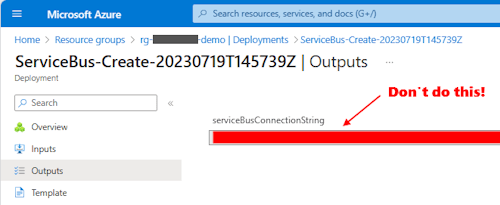
The first pitfall that trips people up is that it is tempting to take a secret like a connection string and just make it an output in the YAML pipeline, after which it’s super easy to pass that value into a subsequent module and create a key vault entry. The issue with that is that once you set it as an output, the value is visible to anyone who can review your deployment logs in the Azure portal, which is not good.
The next logical step on this journey is to create a custom Bicep template that determines the secret for a resource and then adds it to a Key Vault all in the same module, eliminating the secret leaks, something like this:
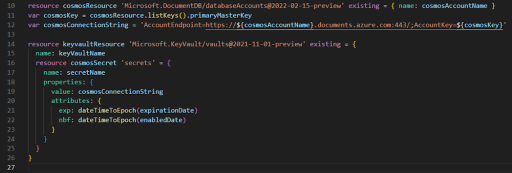
That process actually works very well (especially for one-time demos!). Unfortunately, each time the deploy pipeline is run, the secrets are then redeployed, and the result is that you end up with as many duplicate versions of the same secret as you have pipeline runs, which could add up for nightly builds.

IMHO, there should just be a flag on the key vault secret creation templates that lets you check first to see if it exists and do an upsert or a value comparison for deduplication. An open issue has been created for this topic right now but there is no fix yet (as of July 2023).
After a bit of noodling, I’ve create a GitHub repo with my take on resolving this issue. This repo explores the use of the PowerShell scripts to determine if the secret already exists and/or if it has changed, then uses that information to intelligently create the secret.
Version 1. Create Secrets Every Time
The first folder in the repo is an example of the first option discussed above: create the secrets every time the pipeline is run. This is the most basic version of the templates and is definitely the fastest but the big drawback of creating a duplicate version of every secret each time it runs makes it less than desirable. I’ve included Bicep templates for many common resources (Storage Account, Service Bus, SignalR, CosmosDB, IOT Hub, and a generic template).
If you use this method, one good option would be to split out the secret creation steps into a separate pipeline step and only run that pipeline only as needed when things change, and that would may suffice for most situations. I included an sample Azure DevOps pipeline in this repo, in which I use YML popup parameters so that the user can choose which parts of the pipeline they want to run and only create secrets when they want to.

Version 2. Create Secrets ONLY if the value changes
This second version of the templates is the most comprehensive example but is also the slowest. It will validate each secret in a PowerShell script by checking to see if it exists and then comparing the supplied value with the current value. If the secret does not exist or the value is different, a new version will be created and the old one will be disabled. This works great!
However, this version has a huge drawback in that it adds an addition ~90 seconds to the pipeline run time FOR EVERY SECRET to go and fetch the value of the secret from the vault and check the secret. (The script actually run in ~1 second but it takes well over a minute for the pipeline to set up the PowerShell environment.) If you’re like me and have 10+ secrets in an average solution, you’ve just made your Bicep part of your pipeline last an extra 15 minutes, and I hate waiting around for stuff like that. If I could figure out how to make the steps run faster, I’d definitely use this, but I don’t want to wait that long for every deploy.

There are many other improvements and clean up that I could do with this version, but since I can’t seem to make it fast enough, it’s not really worth the effort to chase this one down much further. I’ve tried several different ways to improve on the speed of starting up the PowerShell scripts but haven’t come up with a way that will load them any faster.
Version 3. Create Secrets only if they don’t exist
This third example is the version that I like the best in these solutions, as it blends speed with some flexibility. This version of the template will create the secrets only if they do not already exist in the key vault, which effectively means they will be created only the first time the pipeline is run. You can see the status and results for each secret step in the deployment step outputs:

If you really need to update the keys, you can set the ‘forceKeyVaultEntryCreation’ parameter to true and it will force the recreation of each secret (Note: you could make that a YML parameter that can be changed at runtime – as in the previous example – but I haven’t done that in these samples).
The only real drawback of this version is that it adds an addition ~90 seconds to the pipeline run time to go fetch the list of secret names currently in the vault. (Again, the script runs in a few seconds but it takes well over a minute for the pipeline to set up the PowerShell environment.) Each of the secret existence checks after that take less than 1 second, as shown in this deployment summary:
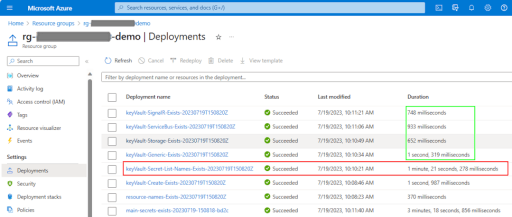
The trick to this version is to run this one little PowerShell script at the start of the main Bicep template that essentially boils down to these three lines:

These lines will return a single string with all of your secret names preceded and followed by a “;” (i.e. “;Secret1;Secret2;Secret3;“), which means you can search for a secret and be assured you are not getting a partial name hit.
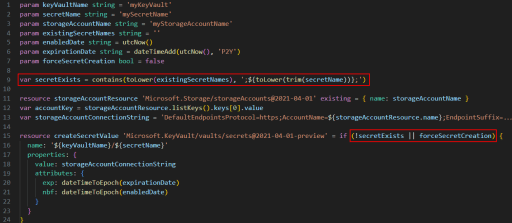
In the Bicep file that creates the key, it’s now trivial to pass in the list of existing secret names and do a quick compare to see if your key exists in the Key Vault, then skip the step if it already exists with a conditional statement:
Bicep needs Key Vault Secret Access
One important note in this solution is that the Bicep template needs security rights to read the key vault. This was accomplished by creating a Managed Identity in the Key Vault. When the Key Vault is created, a managed identity is assigned. Note: if you are only doing version 3, then you should remove the “Set” and “Get” secrets permissions below, as it only needs list permission, but if you are trying version 2, then you’ll want to be able to get and set the values also.
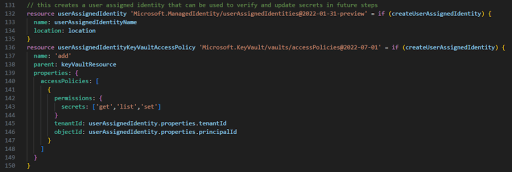
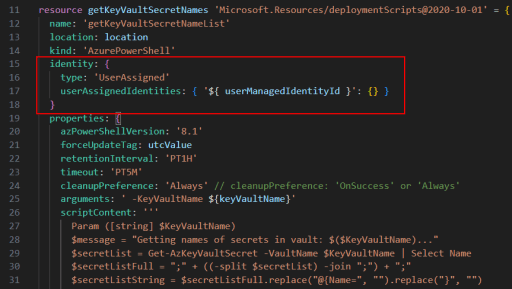
When a Bicep template PowerShell Script needs access to the Key Vault, it uses the Managed Identity context to read the secrets:
Wrap up…
So — what do you think…? Do you have the same problems with your Bicep templates…? Or you just haven’t run into this? (not yet!)
Let me know what you think or if you have any better options that you’ve found!
Lyle
 Lyle's Blog